Part 2: Landing Zones — Real Data Ingestion
In Part 1, you used a VALUES clause to generate sample data. That works for learning,
but real platforms ingest data from files. In this part, you will upload real CSV files
through landing zones and build pipelines that read from them.
Time required: ~15 minutes
Prerequisites: Completed Part 1
What You Will Build
Two Bronze pipelines that ingest real space launch data:
mission_log— reads 25 launches fromspace_launches.csvrocket_registry— reads 11 launch vehicles fromlaunch_vehicles.csv
Both pipelines will read from landing zones — RAT’s mechanism for bringing external files into the platform.
What Are Landing Zones?
A landing zone is a named drop area where you upload files (CSV, Parquet, JSON).
Pipelines reference landing zones using the landing_zone() Jinja function, and RAT
resolves the path to the actual files in S3.
Landing zones are useful because:
- They decouple file upload from pipeline execution
- Files can be uploaded via the portal UI,
curl, or S3 API - You can upload sample files for preview (so you can test before running)
- Landing zone uploads can trigger pipelines automatically (Part 7)
Create the Launch Data Landing Zone
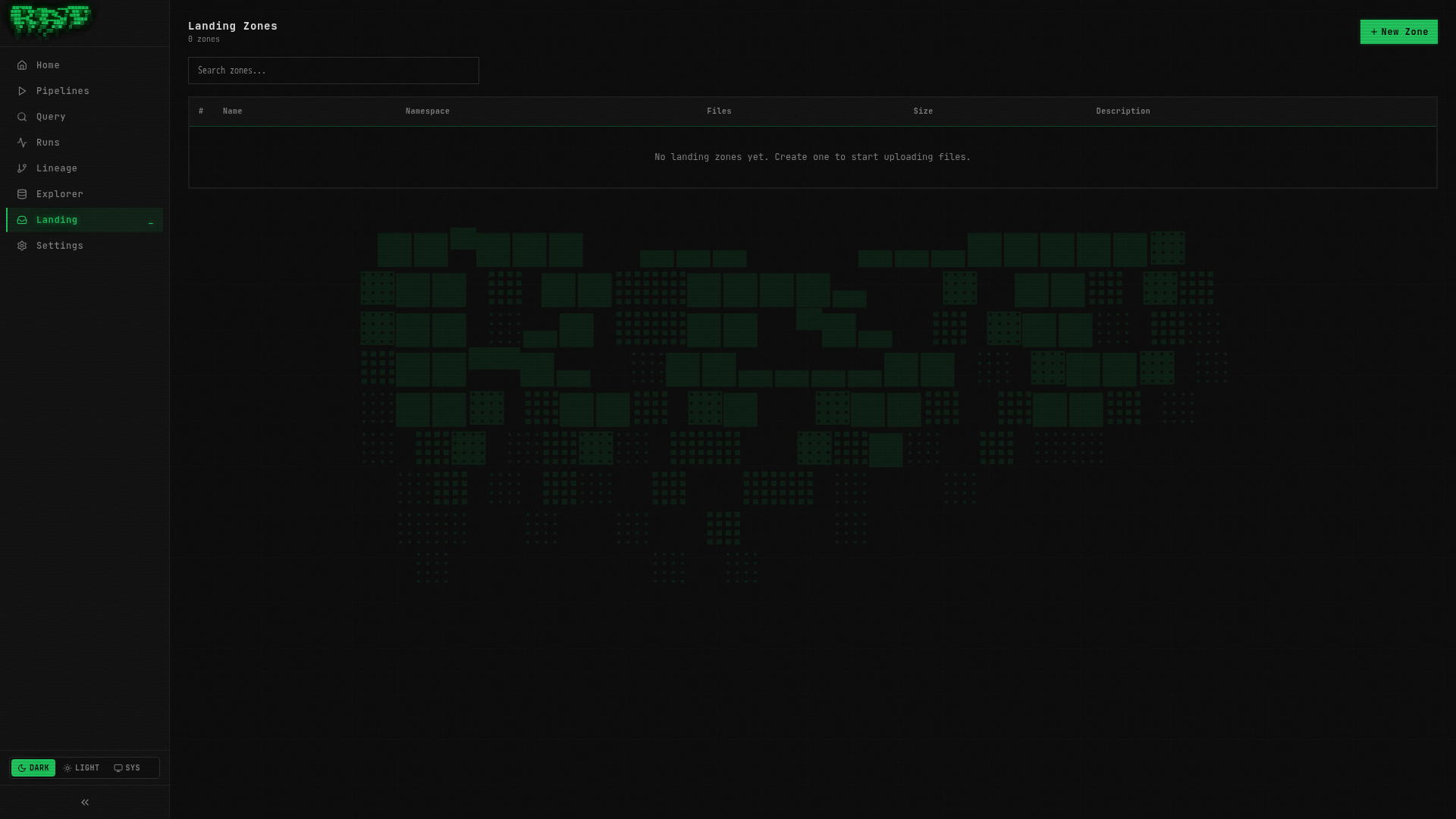
Navigate to the Landing page
Click Landing in the left sidebar. This page lists all landing zones. It is empty since you have not created any yet.
Create a new landing zone
Click the + New Landing Zone button. Fill in:
| Field | Value |
|---|---|
| Name | launch-data |
Click Create.
Landing zone names are kebab-case identifiers. They are referenced in pipeline SQL as
{{ landing_zone("launch-data") }}, which resolves to the S3 path where the files are stored.
Upload the CSV file
You need the space_launches.csv file from the repository. It is located at
docs/data/space_launches.csv (25 rows of real space launch data).
Option A: Upload via the portal
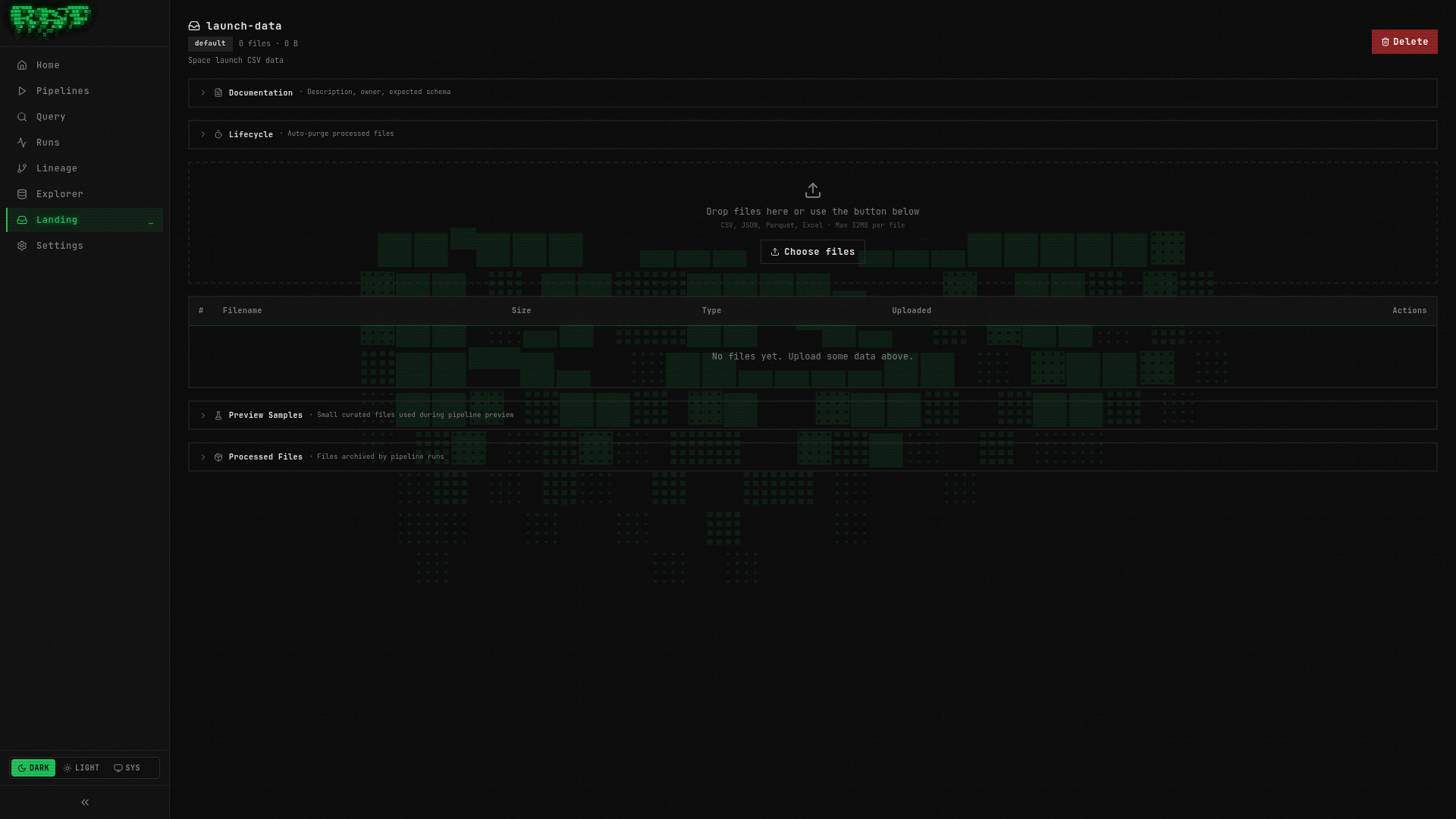
Open the landing zone detail page and use the drag-and-drop upload area. Drag
space_launches.csv into the upload zone.
Option B: Upload via curl
curl -X POST http://localhost:8080/api/v1/landing-zones/launch-data/files \
  -F "file=@docs/data/space_launches.csv"
Upload a sample file
For preview to work, RAT needs a sample file in the _samples/ directory of the
landing zone. Upload the same CSV as a sample:
In the landing zone detail page, scroll to the Samples section and upload
space_launches.csv there.
Sample files are used by the preview feature. When you press Ctrl+Shift+Enter in the editor, RAT uses the sample files (not the real data) so preview stays fast and does not require a full pipeline run.
Verify the upload
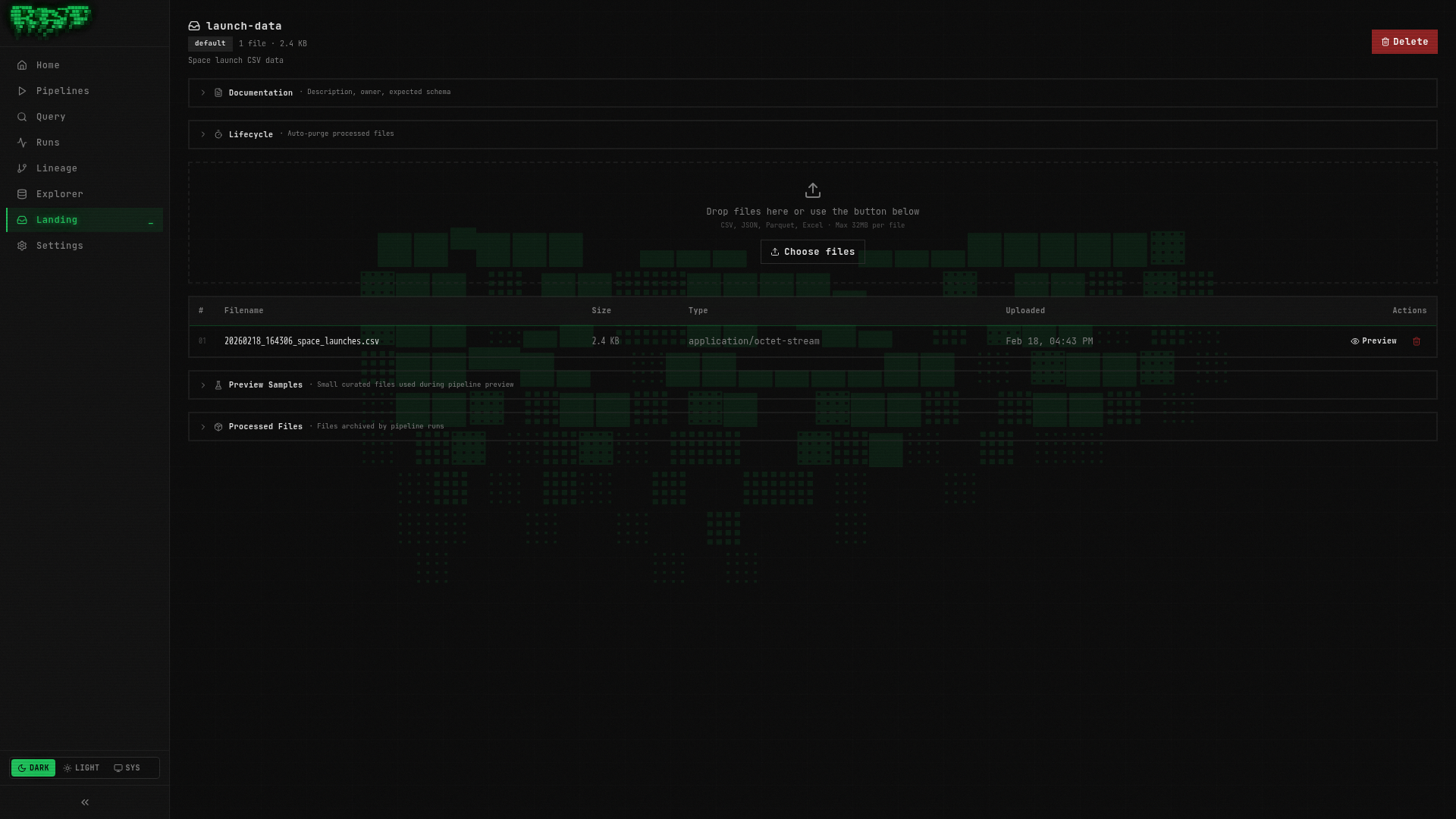
The landing zone detail page should now show your uploaded file with its size and timestamp.
Create the Mission Log Pipeline
Create the pipeline
Go to Pipelines → + New Pipeline:
| Field | Value |
|---|---|
| Namespace | default |
| Layer | bronze |
| Name | mission_log |
| Type | sql |
Write the SQL
-- @description: Space launch mission data from landing zone

SELECT
    launch_id,
    mission_name,
    launch_date,
    vehicle,
    launch_site,
    country,
    orbit,
    outcome,
    payload_mass_kg,
    mission_type
FROM read_csv_auto('{{ landing_zone("launch-data") }}')
The key here is {{ landing_zone("launch-data") }}. This is a Jinja template function
that resolves to the S3 path of your landing zone at execution time. DuckDB’s
read_csv_auto function reads the CSV and auto-detects the schema.
The landing_zone() function is one of RAT’s Jinja template helpers. Others include
ref() (reference another table), this (current table name), is_incremental(),
and watermark_value. You will use these throughout the tutorial.
Preview
Press Ctrl+Shift+Enter to preview. You should see all 25 rows from the CSV:
| launch_id | mission_name | launch_date | vehicle | country | orbit | outcome | payload_mass_kg |
|---|---|---|---|---|---|---|---|
| L001 | Starlink Group 6-1 | 2023-02-17 | Falcon 9 | USA | LEO | success | 17400 |
| L002 | Crew-6 | 2023-03-02 | Falcon 9 | USA | LEO | success | 12055 |
| … | … | … | … | … | … | … | … |
| L025 | Crew-9 | 2024-09-28 | Falcon 9 | USA | LEO | success | 12055 |
Save, Publish, and Run
- Save —
Ctrl+S - Publish — click the Publish button
- Run — click the Run button (play icon) and confirm
Watch the run logs. You should see:
[INFO]  Starting pipeline: default.bronze.mission_log
[INFO]  Creating branch: run-xyz789
[INFO]  Executing SQL pipeline...
[INFO]  Query produced 25 rows
[INFO]  Writing to Iceberg table: default.bronze.mission_log
[INFO]  Merging branch: run-xyz789 → main
[INFO]  Pipeline completed successfully in 1.8s
Verify in Query Console
Navigate to Query and run:
SELECT COUNT(*) AS total, COUNT(DISTINCT country) AS countries
FROM "default"."bronze"."mission_log"
Result: 25 total launches from 5 countries (USA, France, Russia, India, Japan).
Create the Vehicle Catalog Landing Zone
Now repeat the process for the launch vehicles data.
Create the landing zone
Go to Landing → + New Landing Zone:
| Field | Value |
|---|---|
| Name | vehicle-catalog |
Upload the CSV
Upload docs/data/launch_vehicles.csv (11 rows) — both as a data file and as a sample.
Drag launch_vehicles.csv into the upload area, then upload it again in the Samples section.
Create the Rocket Registry Pipeline
Create the pipeline
Go to Pipelines → + New Pipeline:
| Field | Value |
|---|---|
| Namespace | default |
| Layer | bronze |
| Name | rocket_registry |
| Type | sql |
Write the SQL
-- @description: Launch vehicle specifications from vendor catalog

SELECT
    vehicle_name,
    manufacturer,
    country,
    height_m,
    diameter_m,
    mass_kg,
    thrust_kn,
    stages,
    first_flight,
    active
FROM read_csv_auto('{{ landing_zone("vehicle-catalog") }}')
Preview, Save, Publish, Run
- Preview — verify you see 11 rows of rocket data
- Save (
Ctrl+S) → Publish → Run
Verify
SELECT vehicle_name, manufacturer, country, active
FROM "default"."bronze"."rocket_registry"
ORDER BY vehicle_name| vehicle_name | manufacturer | country | active |
|---|---|---|---|
| Ariane 5 | ArianeGroup | France | false |
| Ariane 6 | ArianeGroup | France | true |
| Falcon 9 | SpaceX | USA | true |
| Falcon Heavy | SpaceX | USA | true |
| … | … | … | … |
Check Your Progress
At this point, you should have:
| Pipeline | Layer | Source | Rows |
|---|---|---|---|
raw_launches | bronze | VALUES clause (Part 1) | 5 |
mission_log | bronze | Landing zone launch-data | 25 |
rocket_registry | bronze | Landing zone vehicle-catalog | 11 |
Navigate to Explorer to see all three tables in the tree:
default/
  bronze/
    mission_log (25 rows)
    raw_launches (5 rows)
    rocket_registry (11 rows)
You can also check Runs to see the history of all 3 pipeline executions.
What You Learned
- Landing zones are named file drop areas for ingesting external data
{{ landing_zone("name") }}resolves to the S3 path at execution time- DuckDB’s
read_csv_auto()handles CSV parsing and schema detection - Sample files enable preview without a full pipeline run
- Files can be uploaded via the portal UI or the REST API (
curl)
Next Steps
You now have two Bronze tables with real data — launches and vehicles. In Part 3, you
will create a Silver pipeline that joins them together using ref(), and you will
see the lineage DAG that visualizes how your pipelines connect.