Part 6: Python Pipelines 🐍
Time: ~10 minutes | Prerequisites: Part 5 completed (quality tests running)
So far, every pipeline you have written has been pure SQL. That covers most use cases — but sometimes you need the flexibility of Python. Multi-step transformations, programmatic query building, intermediate variables, logging — Python pipelines let you do all of that while still writing to the same Iceberg tables.
In this part, you will create a Python pipeline that computes per-vehicle launch statistics using DuckDB and PyArrow.
When to Use Python vs SQL
Your transformation is expressible as a single SELECT statement. SQL pipelines are simpler, more readable, and easier to maintain. The vast majority of pipelines should be SQL.
You need multi-step processing, intermediate variables, control flow, dynamic SQL generation, custom parsing logic, or programmatic DuckDB query composition.
Common reasons to reach for Python:
- Multi-step logic — fetch data, compute intermediate results, combine them
- Dynamic SQL — build queries programmatically based on runtime conditions
- Logging — emit progress messages to the run log for debugging
- PyArrow operations — column-level transformations using Arrow’s compute functions
- JSON / string parsing — complex parsing that’s awkward in SQL
When in doubt, start with SQL. You can always convert to Python later if the SQL becomes too complex. A good rule of thumb: if your SQL is over 80 lines with CTEs, Python might be cleaner.
Create the Python Pipeline
Let’s build launch_vehicle_stats — a Silver pipeline that computes per-vehicle performance
statistics from the bronze launch data.
Navigate to Pipelines
Open the Portal and go to the Pipelines page. Click New Pipeline.
Configure the pipeline
| Field | Value |
|---|---|
| Name | launch_vehicle_stats |
| Namespace | default |
| Layer | silver |
| Language | Python |
Write the Python code
Paste the following into the editor:
# @description: Launch vehicle performance statistics
# @merge_strategy: full_refresh

import json
from datetime import datetime

# Fetch launch data from the bronze table
launches = duckdb_conn.execute(f"""
    SELECT vehicle, outcome, payload_mass_kg, launch_date
    FROM {ref('bronze.mission_log')}
""").fetch_arrow_table()

log.info(f"Processing {len(launches)} launches")

# Compute per-vehicle statistics
stats = duckdb_conn.execute("""
    SELECT
        vehicle,
        COUNT(*) AS total_launches,
        SUM(CASE WHEN outcome = 'success' THEN 1 ELSE 0 END) AS successes,
        ROUND(100.0 * SUM(CASE WHEN outcome = 'success' THEN 1 ELSE 0 END) / COUNT(*), 1) AS success_rate_pct,
        SUM(payload_mass_kg) AS total_payload_kg,
        MIN(launch_date) AS first_launch,
        MAX(launch_date) AS last_launch
    FROM launches
    GROUP BY vehicle
    ORDER BY total_launches DESC
""").fetch_arrow_table()

log.info(f"Computed stats for {len(stats)} vehicles")
result = stats
Let’s break down what’s happening:
duckdb_conn.execute()— queries the bronze table usingref()to resolve the Iceberg path.fetch_arrow_table()— returns the result as a PyArrow tablelog.info()— emits messages that appear in the Portal’s run logs- Second query on
launches— DuckDB can query PyArrow tables directly by name result = stats— sets the output. This is what RAT writes to Iceberg.
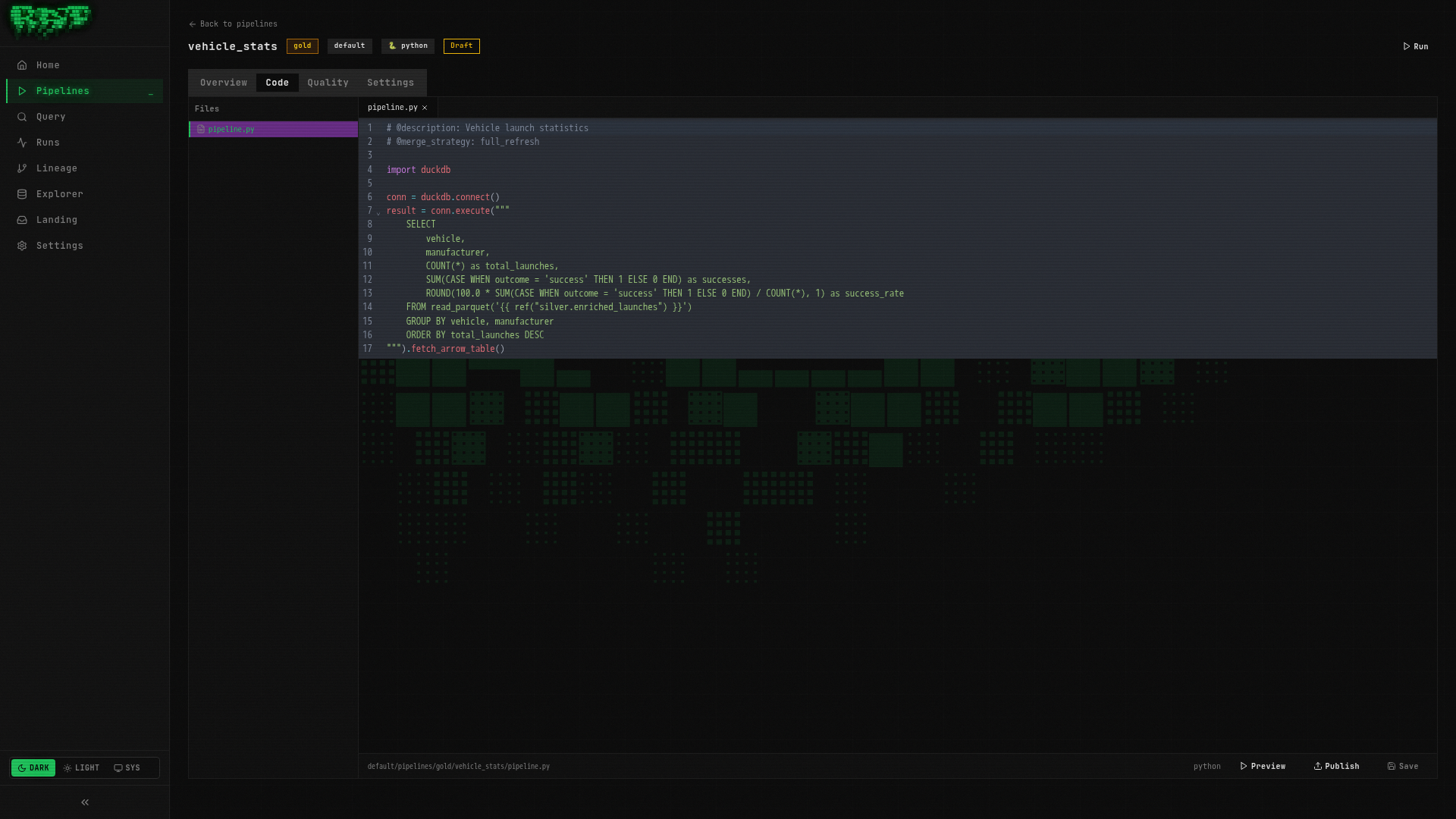
Preview the results
Click Preview. You should see one row per vehicle with their launch count, success rate, total payload mass, and date range. Vehicles like Falcon 9 should appear near the top with the highest launch counts.
Publish the pipeline
Click Publish to save the pipeline definition. Enter a version message like
"Initial vehicle statistics pipeline".
Run the pipeline
Click Run. Watch the run logs — you should see your log.info() messages:
Processing 25 launches
Computed stats for 8 vehicles
The result Contract
Every Python pipeline must set the result global to a PyArrow Table. This is the
data that RAT writes to Iceberg. If your pipeline finishes without setting result — or
sets it to something other than a pa.Table — the run will fail.
# Minimal valid pipeline — builds a table from scratch
result = pa.table({
    "id": [1, 2, 3],
    "name": ["Alice", "Bob", "Charlie"],
})If you have conditional branches in your code, make sure every branch sets result.
A common mistake is to set result inside an if block but forget the else.
Available Globals
When your pipeline.py executes, RAT injects these globals into the execution scope.
These are the only tools you need — no imports required for the basics.
| Global | Type | Description |
|---|---|---|
duckdb_conn | SafeDuckDBConnection | Pre-configured DuckDB connection with S3 and Iceberg extensions loaded. Use for all queries. |
pa | pyarrow module | The PyArrow module, pre-imported. Use pa.Table, pa.array(), pa.table(), etc. |
ref | Callable[[str], str] | Returns the Iceberg scan expression for a referenced table. Same as SQL {{ ref() }}. |
landing_zone | Callable[[str], str] | Returns the S3 glob path for a named landing zone. Same as SQL {{ landing_zone() }}. |
this | str | Current pipeline’s own Iceberg table path. Used for self-referencing in incremental pipelines. |
run_started_at | str | ISO 8601 UTC timestamp of the current run. Useful for _loaded_at columns. |
is_incremental | bool | True if the merge strategy is incremental and the target table already exists. |
config | dict | Parsed config.yaml contents (or empty dict if no config file exists). |
log | Logger | Python logger instance. Use log.info(), log.warning(), log.error() for run logs. |
result | None | The output variable. You must set this to a pa.Table before the pipeline finishes. |
Notice that ref() in Python returns a string (an iceberg_scan(...) expression), not a
table. You use it inside f-strings passed to duckdb_conn.execute(). This keeps the same
ref() semantics as SQL pipelines.
Security Sandbox
Python pipelines run in a sandboxed environment. RAT blocks dangerous operations to prevent pipelines from interfering with the runner process or accessing the host system.
Blocked Built-in Functions
| Blocked | Why |
|---|---|
exec() | Arbitrary code execution |
eval() | Arbitrary code execution |
compile() | Code compilation |
__import__() | Unrestricted module loading |
open() | Filesystem access |
globals() | Scope manipulation |
breakpoint() | Debugger access |
input() | Would hang the runner |
Allowed Imports
You can import these modules — they are explicitly allowed:
| Category | Modules |
|---|---|
| Data | duckdb, pyarrow (+ submodules like pyarrow.compute), json, csv |
| Math / Stats | math, decimal, statistics |
| Dates | datetime |
| Text | re, string, textwrap, base64 |
| Collections | collections, itertools, functools, operator |
| Utilities | hashlib, uuid, struct, io, copy, enum, abc, warnings, contextlib |
| Typing | dataclasses, typing |
Blocked Imports
Everything else is blocked — notably os, sys, subprocess, socket, http, requests,
urllib, pathlib, importlib, ctypes, multiprocessing, and threading.
If you need to fetch data from an HTTP endpoint, use DuckDB’s built-in HTTP extension
via duckdb_conn rather than trying to import requests. The sandbox blocks direct
network access from Python, but DuckDB can reach external URLs.
AST Validation
RAT also performs static analysis on your code before execution. It blocks double-underscore
attribute access (e.g., obj.__class__.__bases__) to prevent sandbox escape through Python’s
object model.
Query the Results
Let’s verify the vehicle statistics are correct.
Open the Query page
Navigate to Query in the sidebar.
Run a verification query
SELECT
    vehicle,
    total_launches,
    success_rate_pct,
    total_payload_kg,
    first_launch,
    last_launch
FROM default.silver.launch_vehicle_stats
ORDER BY total_launches DESC
You should see one row per vehicle, with Falcon 9 likely leading in total launches and payload mass.
Check the success rates
SELECT vehicle, success_rate_pct
FROM default.silver.launch_vehicle_stats
WHERE success_rate_pct < 100
ORDER BY success_rate_pct ASC
This shows vehicles that have experienced at least one failure — useful for identifying reliability trends.
What You Built
In this part, you:
- ✅ Created a Python pipeline (
launch_vehicle_stats) using DuckDB + PyArrow - ✅ Learned all 10 available globals and how they work
- ✅ Understood the
resultcontract — every Python pipeline must set it to a PyArrow table - ✅ Explored the security sandbox — what’s allowed and what’s blocked
- ✅ Queried the results to verify the computed statistics
Your pipeline graph now includes both SQL and Python pipelines. In the next part, you’ll wire them together with triggers so they run automatically.
Next: In Part 7, you’ll set up triggers to automate your entire pipeline chain — cron schedules, event-driven triggers, webhooks, and more.